Router review - Sophos UTM
October 9, 2026, 8:59 pmToday I wanted to share a review I did for parental's control on the special router sophos utm.
The home edition is free, and is bundled with all the pro's feature.
Our Free Home Use Firewall is a fully equipped software version of the Sophos Firewall, available at no cost for home users – no strings attached. Features full protection for your home network, including anti-malware, web security and URL filtering, application control, IPS, traffic shaping, VPN, reporting and monitoring, and much more.
NOTE: The Sophos Free Home Use firewall contains its own operating system and will overwrite all data on the computer during the installation process. Therefore, a separate, dedicated computer is needed, which will change into a fully functional security appliance. Just right for the spare PC you have sitting in the corner!
This router need some knowledge to install as it use a computer you might have inside your home, that will be refurbishing to be a router.
I will skip the installaion process to focus on the parental's control, but if you need some guide for that let me know !
The first control, web filtering;
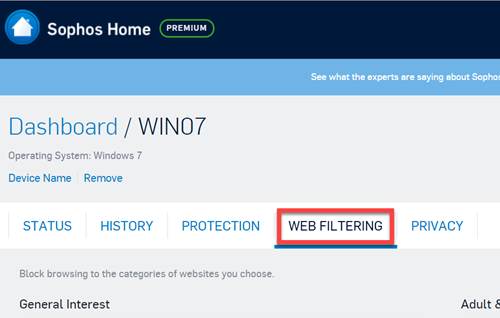
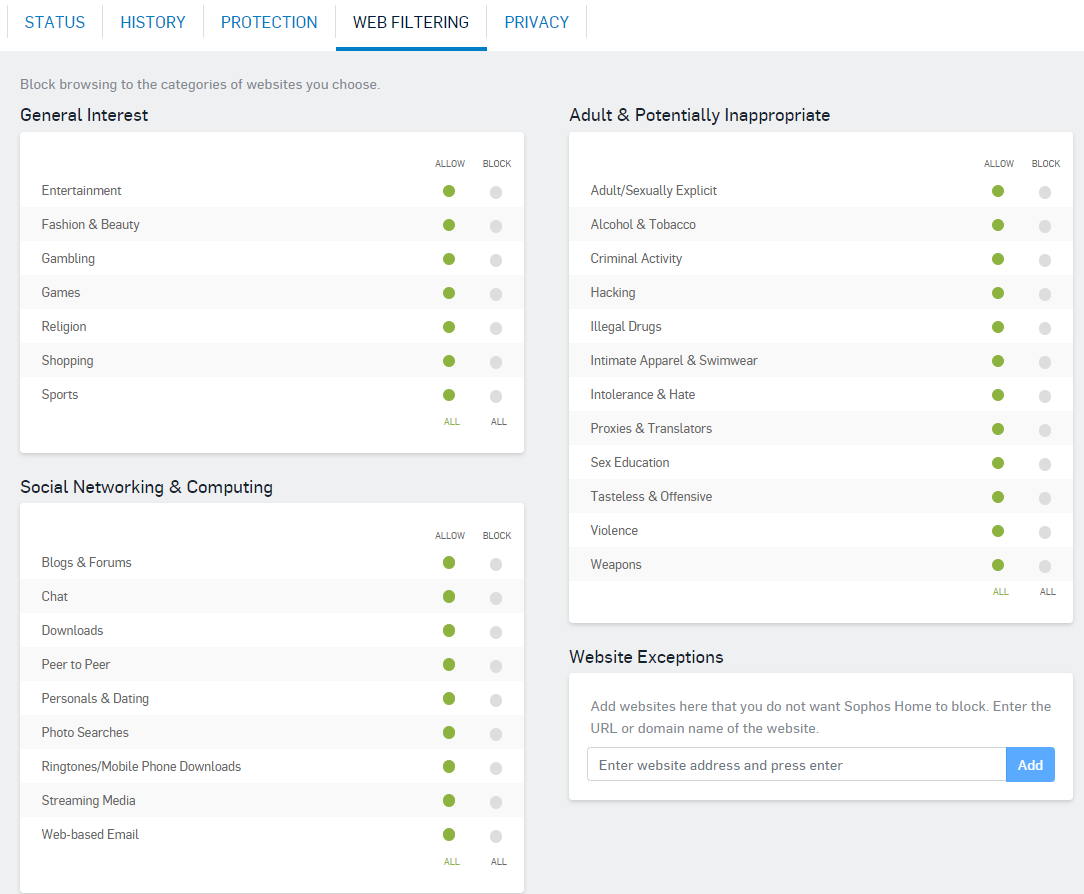
In the web filtering, you can directly adjust the youtube restricted mode, so it's harder to bypass.
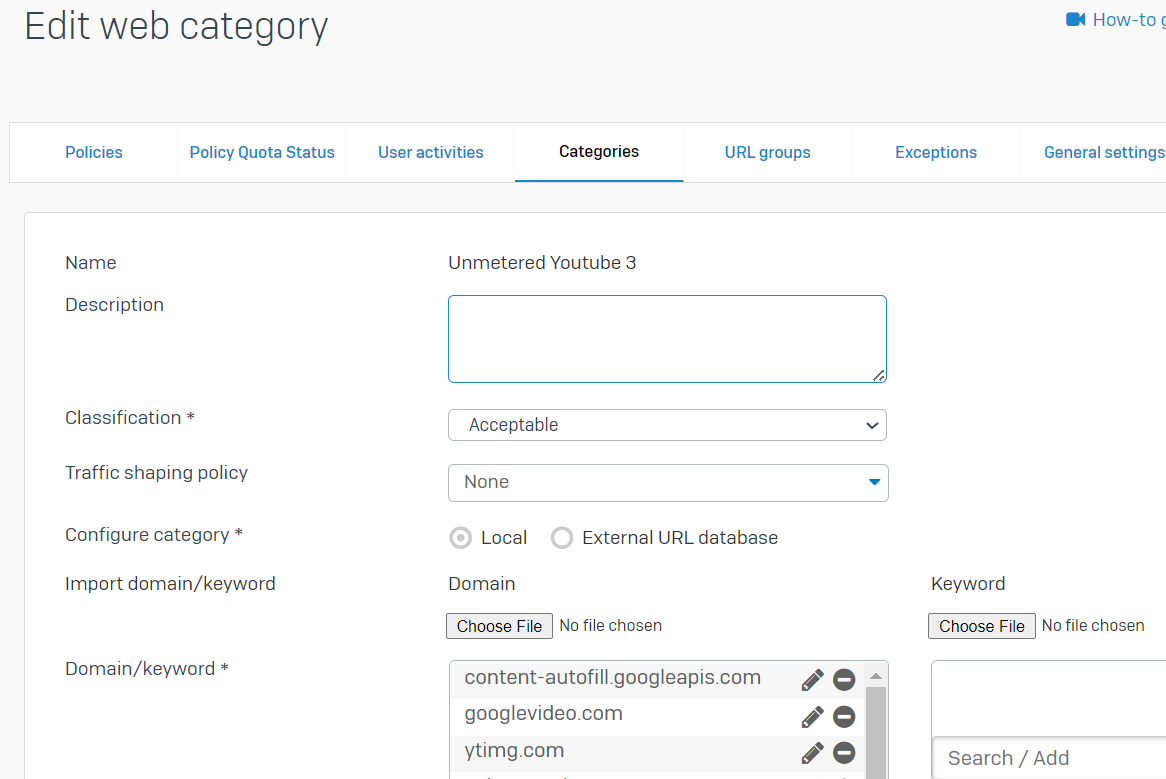
You can define quota and time schedule too.
In overall it's a good router to own/make if you got the knowledge for, and it got good configuraiton for parental's control.
Youtube Restriced Mode
October 9, 2026, 6:38 pmToday I will talk about the restricted mode of youtube. It help to prevent unwanted video ! but it's not bulletproof as a parental's control, but it can help to filter the unwanted videos.
The tip is to load a profile inside Chrome and allow that profile to load in the youtube web site.
While naviguating on youtube, in the profile section, it's a simple option there and I suggest to use the option to Lock the setting. That way o desactivate it will ask for the account password.
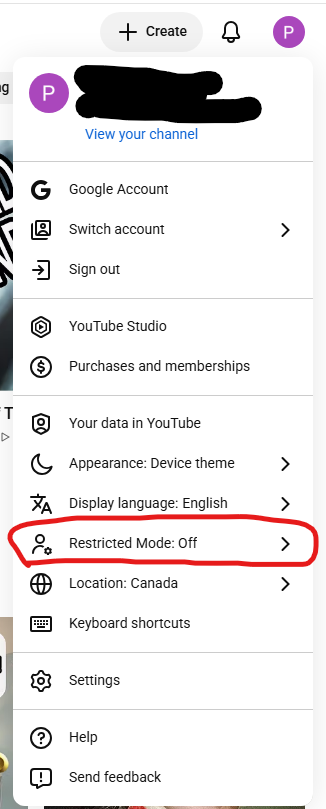
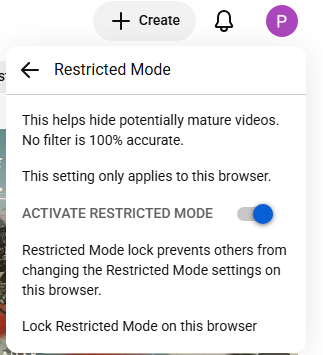
The setting, when on, allow youtube to adjust, the search result and suggested video will not display video deemed for an older audience. Lke talked it's not bulletproof, but as it's integrated inside the naviguator, it can be easy to set at on.
New apps release for Android
October 2, 2026, 9:09 pmHi everyone, I wanted to share a new version of the mobile apps is released !
The UI got greatly improved and unlike the website, the video can't be escaped on the Android, which is nice.
See it live there;
https://play.google.com/store/apps/details?id=com.companyname.lorky_v1.x0.x3&hl=fr_CA&gl=US
or here for a Amazon's device;
https://www.amazon.ca/Philippe-Levesque-Lorky/dp/B09Q5DTSK4
Enjoy, and don't hesitate to message me if you find any bug.
Tech Tip: ASUS parental's control for home router
September 24, 2026, 7:01 pmToday I wanted to share some tips and information if you use an ASUS router for parental's control.
For general threat the router got those protection :
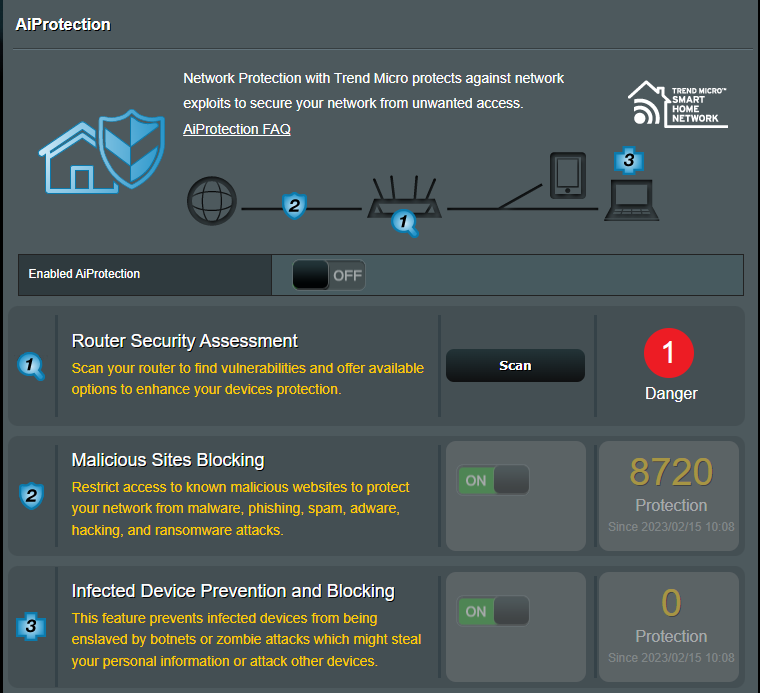
- AI Protection, which do the following;
- Malicious site protection.
- Infected device block.
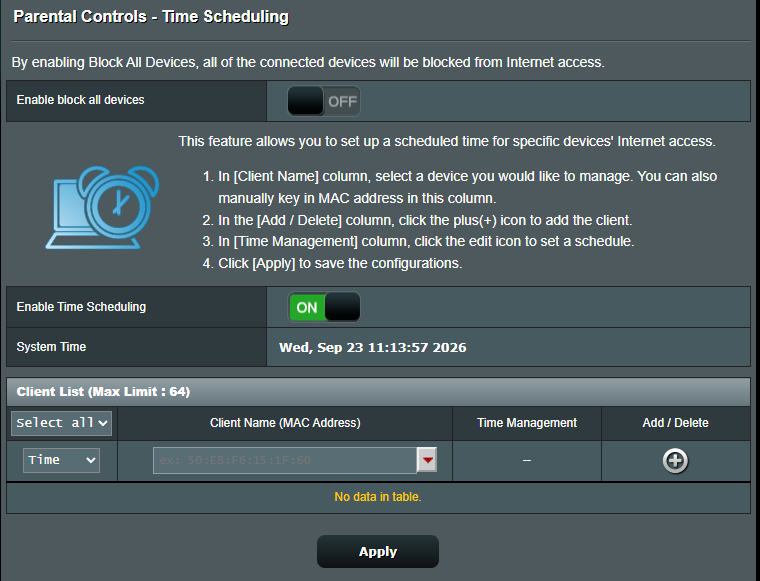
For the parental's control there we are limited to hours scheduling but are not a paid addition, which is nice. The malicious site protection is not targeting for the teenagers, but it help to prevent malicious site for users that are not used to be alert for such.
To make it work we need to add the device to the allow list, with the time schedule allocated for it.
The feature got a nice settings to block all. After the setting is set we can Allow specific device.
This feature is nice as by default anonymous mode on Apple Device, the MAC address get changed every time the device connect, so it add a layer of complexity to enable a schedule for them if your teenager want to bypass your rule.
Some printscreen of the panel;
Tech Tip: Amazon Fire Tablet Parental's control
September 24, 2026, 7:01 pmI wanted to review the parentals control of the Amazon Fire Tablet.
The product can be paid by months, but be advised I review the free version, which still allow some parental's control.
The first step is to register the tablet under your own amazon account as a parent.
The second step is to go on the dashboard; https://www.amazon.com/parentdashboard
After that, we are presented with that page, which we can skip;
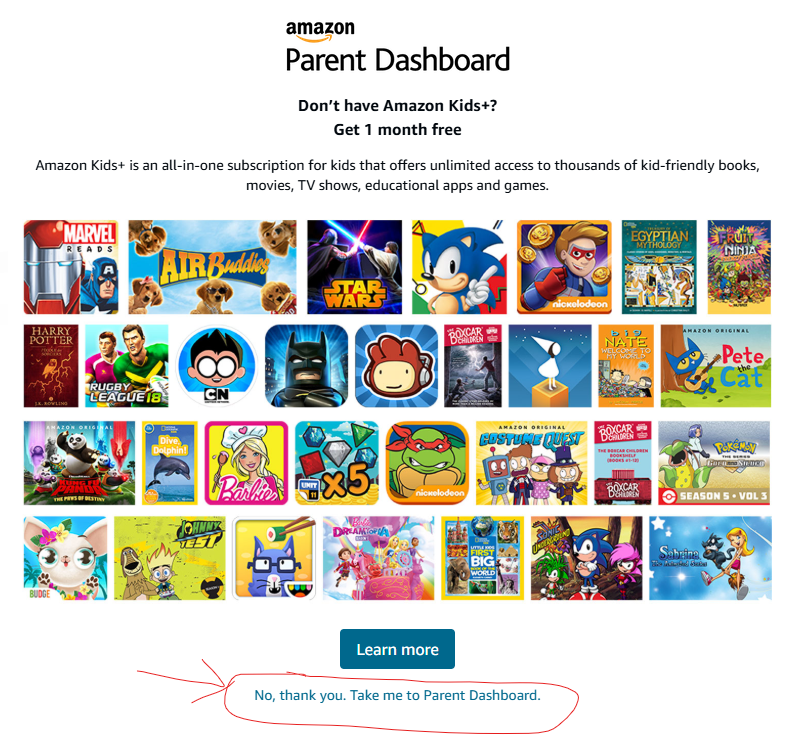
From here we can go see the settings and content we want to allow on each kids device.
We are presented with a resumy of the tablet use;
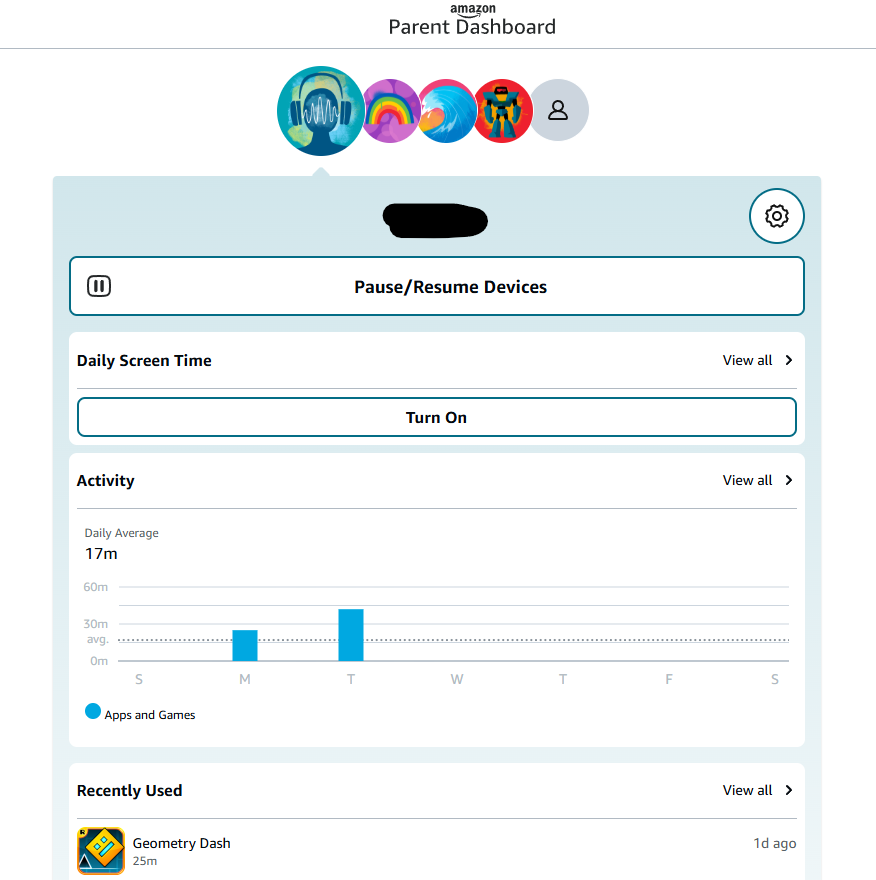
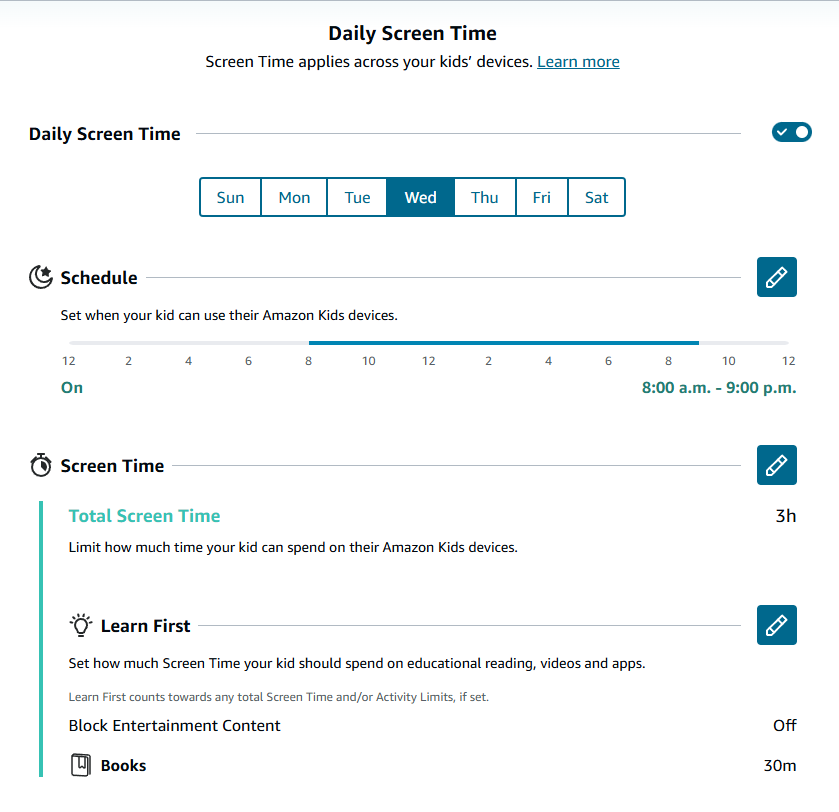
We can click to see like the schedule and settings;
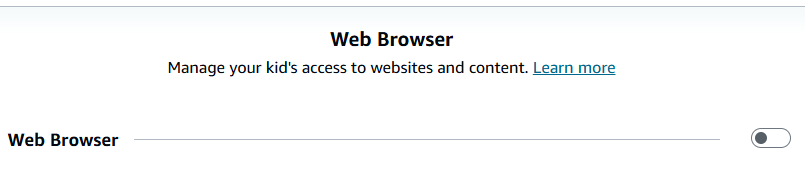
I recommend to turn off the web browser, as it's a way to bypass the restriction;
After that we can see the content;
We click to see owned content;
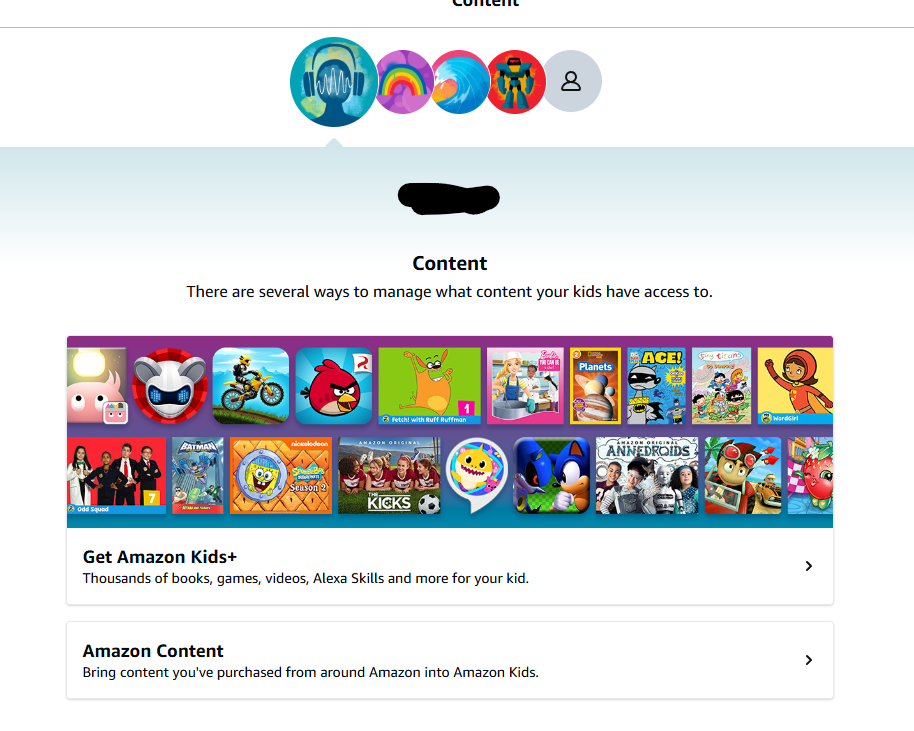
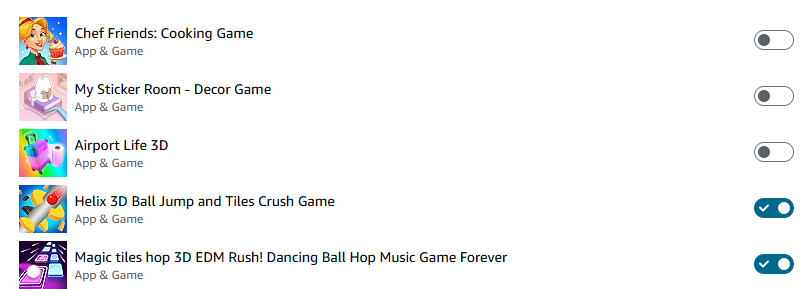
Be advised, a paid game can be installed on all devices, BUT in-games purchase NO so watch for in-games purchases, as it cna be tricky to re-import.
For my review, I found the parental control really nice, only drawback are the ingame purchase mode, which are hard to transfert, like if your kid broke is tablet, the ID dont fit, so you have to contact all game to reactivate.